Learning how to use SEOquake can make SEO research faster, easier, and less confusing, especially if you are a small business owner, beginner, startup founder, blogger, or marketer trying to improve your website visibility.
SEO can feel overwhelming at first. There are keywords, backlinks, meta tags, headings, rankings, technical checks, and competitor research to think about. SEOquake helps simplify some of that work by giving you quick SEO data right inside your browser.
Instead of switching between several tools for basic checks, you can use SEOquake to review pages, compare competitors, analyze search results, and spot on-page SEO issues in minutes.
This guide will walk you through what SEOquake is, how to install it, and how to use its key features in a practical way.
What Is SEOquake?
SEOquake is a free browser extension that helps you analyze SEO data while browsing websites and search engine results pages.
It is especially useful for quick SEO checks, such as:
- Reviewing page titles and meta descriptions
- Checking headings
- Viewing keyword density
- Auditing basic on-page SEO elements
- Comparing competitor pages
- Analyzing search results
- Exporting SERP data
- Reviewing internal and external links
- Checking basic domain and page metrics
Think of SEOquake as a quick SEO inspection tool. It will not replace a full SEO strategy, but it can help you understand what is happening on a webpage much faster.
For beginners, this makes it a great starting point.
Why Use SEOquake for SEO Research?
SEOquake is useful because it gives you fast access to SEO information without needing to open a full dashboard every time.
If you run a website, blog, online store, agency, or local business, SEOquake can help you answer questions like:
- Is my page title too long?
- Does this page have a meta description?
- How many headings are on this page?
- What keywords appear most often?
- How do competitor pages structure their content?
- Which pages rank on Google for my target keyword?
- Are there too many external links on a page?
- Can I export search results for deeper research?
For small business owners and beginners, this matters because SEO decisions should not be based on guessing. SEOquake gives you quick clues so you can make better improvements.
How to Use SEOquake for Beginners
If you want to know how to use SEOquake, start with the basics: install the extension, visit a webpage, open the SEOquake toolbar, and review the most important SEO elements.
Here is the simple process:
- Install SEOquake in your browser
- Activate the extension
- Visit your website or a competitor’s website
- Open the SEOquake panel
- Review page data, diagnosis, keywords, and links
- Use the insights to improve your SEO
You do not need to understand every metric on day one. Start with the features that help you make practical website improvements.
Seoquake: Ultimate Guide to Boost Your SEO Performance Fast
Seoquake: Ultimate Guide to Boost Your SEO Performance Fast is not about using every feature at once. It is about knowing which features matter most for your goals.
For beginners, the most useful SEOquake features are:
- SEO Bar
- SERP Overlay
- Page Diagnosis
- Keyword Density Report
- Internal and External Link Analysis
- Compare URLs
- Export Data
Each feature supports a different part of SEO research.
Let’s break them down.
How to Install SEOquake
Installing SEOquake is simple. You can usually add it to your browser in just a few minutes.
Step-by-Step Installation
- Open your browser extension store
- Search for “SEOquake”
- Click the SEOquake extension
- Select “Add to browser” or “Install.”
- Confirm permissions
- Pin the extension to your browser toolbar for easy access
Once installed, you should see the SEOquake icon near your browser’s address bar.
Quick Setup Tip
After installation, visit a website and click the SEOquake icon. You can turn the tool on or off depending on when you want to use it.
If the toolbar feels distracting, keep it off until you need it.
SEOquake Main Features Explained
SEOquake gives you several tools inside one browser extension. Some are simple, while others are better for deeper research.
Here is a beginner-friendly overview.
| SEOquake Feature | What It Does | Best Use |
| SEO Bar | Shows quick SEO metrics while browsing | Fast page review |
| SERP Overlay | Adds SEO data to search results | Competitor and keyword research |
| Diagnosis | Checks basic on-page SEO elements | Website optimization |
| Density | Shows common keywords on a page | Content review |
| Internal Links | Lists links pointing within the same website | Site structure checks |
| External Links | Lists links pointing to other websites | Link review |
| Compare URLs | Compares multiple pages side by side | Competitor analysis |
| Export | Downloads data for spreadsheets | SEO reporting and planning |
You do not need to use everything at once. Start with the SEO Bar, Diagnosis, and SERP Overlay.
How to Use the SEOquake SEO Bar
The SEO Bar appears at the top of your browser when you visit a webpage. It gives you quick SEO information about the page and domain.
Depending on your settings, the SEO Bar may show data such as:
- Page URL
- Domain information
- Indexed pages
- Backlink-related data
- Traffic-related metrics
- Social or page-level indicators
- Links to deeper reports
When to Use the SEO Bar
Use the SEO Bar when you want a fast overview of:
- Your own website pages
- Blog posts
- Service pages
- Competitor pages
- Landing pages
- Product pages
For example, if you publish a blog post, you can open that page and use the SEO Bar as a quick starting point before checking more detailed reports.
How to Use SEOquake Diagnosis for On-Page SEO
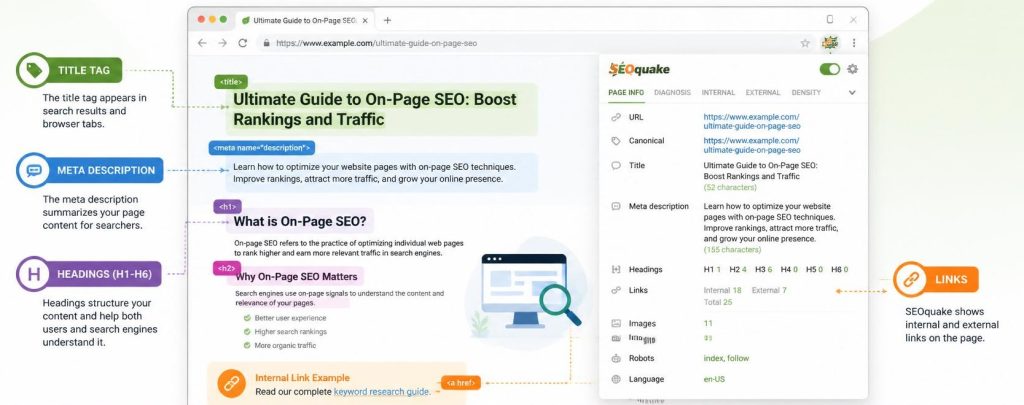
The Diagnosis feature is one of the best SEOquake tools for beginners.
It reviews important on-page SEO elements and flags areas that may need improvement.
What SEOquake Diagnosis Can Check
SEOquake Diagnosis may review items such as:
- Page title
- Meta description
- Meta keywords
- Headings
- Images
- Text-to-HTML ratio
- Internal links
- External links
- Mobile-related signals
- Structured data signals
- Canonical tags
- Robots.txt
- XML sitemap
This helps you spot simple issues that can affect SEO performance.
Practical Example
Let’s say you own a web design business and publish a service page called:
“Affordable Website Design for Small Businesses”
You can open the page, run SEOquake Diagnosis, and check:
- Does the page have one clear title tag?
- Is the meta description missing or too long?
- Is there only one H1 heading?
- Are images missing alt text?
- Are there useful internal links?
- Is the page easy for search engines to understand?
These are basic SEO checks, but they matter.
What to Look for in an On-Page SEO Review
When reviewing a page with SEOquake, do not get lost in every number. Focus on the items that directly affect readability, structure, and search visibility.
1. Title Tag
Your title tag is the clickable title that can appear in search results.
A good title tag should:
- Include the main keyword naturally
- Be clear and specific
- Stay within a reasonable length
- Encourage clicks
- Match the page content
Example:
Good: SEO Services for Small Businesses
Weak: Home
2. Meta Description
Your meta description summarizes the page.
A good meta description should:
- Explain the value of the page
- Include the main topic naturally
- Stay concise
- Encourage users to click
Example:
Good: Get SEO services for small businesses that improve visibility, traffic, and leads with clear strategy and practical content.
Weak: Welcome to our website. We offer many services.
3. Headings
Headings help organize your content for readers and search engines.
Check that your page has:
- One clear H1
- Helpful H2 sections
- H3 headings when needed
- Logical structure
- No confusing heading order
4. Image Alt Text
Alt text helps explain images to search engines and improves accessibility.
If SEOquake shows missing image alt text, update your images with clear descriptions.
Example:
Good: Small business owner reviewing website analytics on laptop
Weak: image1
5. Internal Links
Internal links help users and search engines move through your website.
For example, a blog post about SEO basics could link to:
- Your SEO services page
- A keyword research guide
- A technical SEO checklist
- Your contact page
This keeps visitors engaged and supports site structure.
How to Use SEOquake for Keyword Density
The Keyword Density report shows which words and phrases appear most often on a page.
This can help you understand the main topics of a page.
Why Keyword Density Matters
Keyword density is not about repeating the same keyword as much as possible. That can hurt readability and make content feel forced.
Instead, use the report to check whether your content stays focused.
For example, if you wrote a page about local SEO, you would expect to see related terms like:
- Local SEO
- Google Business Profile
- Local search
- Reviews
- Service area
- Business listing
- Map rankings
If the report shows unrelated words as the most common terms, your content may need more focus.
Beginner Tip
Use keyword density as a guide, not a rule.
Your content should sound natural first. SEOquake can help you confirm whether your topic is clear.
How to Use SEOquake for Competitor Analysis
Competitor analysis is one of the best ways to use SEOquake.
You can review pages that already rank well and learn how they are structured.
What to Check on Competitor Pages
When analyzing competitor pages, look at:
- Page title
- Meta description
- Word count
- Headings
- Main topics covered
- Internal links
- External links
- Keyword usage
- Content structure
- Calls-to-action
You are not copying competitors. You are learning what Google may already reward and looking for ways to create something better.
Practical Competitor Research Workflow
Here is a simple workflow:
- Search your target keyword on Google
- Open the top-ranking competitor pages
- Use SEOquake Diagnosis on each page
- Review headings and meta information
- Check keyword density
- Look for missing topics or weak content
- Create a stronger, clearer, more helpful page
For example, if you want to rank for “SEO services for startups,” you can analyze the top-ranking pages and ask:
- Are they beginner-friendly?
- Do they explain pricing?
- Do they include examples?
- Do they answer common questions?
- Do they include strong CTAs?
- Can I make my content more useful?
This helps you compete with strategy, not guesswork.
How to Use SEOquake SERP Overlay
The SERP Overlay feature adds SEO data directly to search engine results pages.
This is helpful when researching keywords, competitors, and ranking pages.
What SERP Overlay Helps You See
When you search a keyword, SEOquake can show data beside each result. This makes it easier to compare ranking pages without opening every site right away.
You can use it to review:
- Ranking URLs
- Domain-level data
- Page-level indicators
- Search result competition
- Exportable SERP data
Why This Is Useful
Let’s say you search:
“best website design tips for small business”
With SERP Overlay, you can quickly scan the results and identify:
- Which websites are ranking
- Whether the results are mostly blogs, service pages, or guides
- How strong the competing domains look
- Which pages may be worth deeper analysis
This helps you decide whether a keyword is worth targeting.
How to Export SEOquake Data
SEOquake allows you to export data, which is helpful if you like organizing research in spreadsheets.
You can export SERP data and review it later with details such as URLs, titles, and metrics.
When to Export Data
Export data when you want to:
- Compare several competitors
- Build a keyword research spreadsheet
- Review search results over time
- Create an SEO content plan
- Share findings with a client or team
- Track opportunities for blog posts or service pages
Simple Spreadsheet Columns to Add
After exporting, you can add columns like:
- Keyword
- Ranking URL
- Page type
- Content format
- Main topic
- Strengths
- Weaknesses
- Content gap
- Action needed
This turns SEOquake data into a practical SEO plan.
How SEOquake Supports Faster SEO Workflows
SEOquake helps speed up SEO research by reducing the time it takes to collect basic information.
Instead of opening several tools for every quick check, you can review key SEO signals from your browser.
Faster Workflow for Blog Planning
If you are planning a blog post, use SEOquake like this:
- Search your target keyword
- Turn on SERP Overlay
- Review the top-ranking pages
- Open 3 to 5 strong competitors
- Run Diagnosis on each page
- Review headings and keyword density
- Note common topics and missing angles
- Create a better content outline
This can help you plan a stronger article before you start writing.
Faster Workflow for Website Audits
If you are reviewing your own website, use this process:
- Open your homepage
- Run SEOquake Diagnosis
- Check title, meta description, headings, and images
- Review internal and external links
- Repeat for service pages and blog posts
- Make a list of quick fixes
- Update the most important pages first
This is a beginner-friendly way to improve your website step by step.
Common SEOquake Mistakes to Avoid
SEOquake is helpful, but it works best when you use it with the right mindset.
Avoid these common mistakes.
Focusing Only on Scores
SEO tools can show warnings, numbers, and reports, but not every issue has the same importance.
A page with a perfect-looking report may still fail if the content is weak, confusing, or not useful.
Focus on:
- Search intent
- Helpful content
- Clear structure
- Strong user experience
- Relevant keywords
- Trust-building details
Copying Competitors
Competitor research is for learning, not copying.
Use SEOquake to understand what works, then create something more useful, clearer, or more specific.
Ignoring Search Intent
Search intent means the reason behind a search.
For example, someone searching “how to use SEOquake” likely wants a tutorial. They do not want a sales page.
Your content should match what the searcher needs.
Overusing Keywords
Keyword stuffing can make your content hard to read.
Use your main keyword naturally, then include related terms where they make sense.
Related terms for this topic may include:
- SEO browser extension
- SEO audit tool
- on-page SEO checker
- SERP analysis
- competitor analysis
- keyword research tool
- SEO workflow
- website optimization
SEOquake vs Other SEO Tools
SEOquake is great for quick checks, but it is not the only tool you may need.
Here is a simple comparison.
| Tool Type | Best For | Beginner Use |
| SEOquake | Quick browser-based SEO checks | Reviewing pages and SERPs fast |
| Google Search Console | Tracking website search performance | Seeing clicks, impressions, and indexing |
| Google Analytics | Understanding website visitors | Reviewing traffic and user behavior |
| Keyword research tools | Finding keyword ideas | Planning content topics |
| Full SEO audit tools | Deeper technical analysis | Larger website audits |
SEOquake works best as part of your SEO toolkit. It helps you move faster, especially during early research and quick page checks.
Conclusion
SEOquake is a practical tool for anyone who wants to understand SEO without feeling buried in complicated software. It helps you review on-page SEO, analyze competitors, study search results, check keyword usage, and speed up your research process.
If you are learning how to use SEOquake, start simple. Install the extension, review one page, check the Diagnosis report, explore keyword density, and use SERP Overlay when researching competitors.
Over time, these small checks can help you create better content, improve your website, and make smarter SEO decisions.
SEO does not have to feel overwhelming. With the right tools and a clear workflow, you can take confident steps toward better search visibility.
FAQ Section
What is SEOquake used for?
SEOquake is used for quick SEO analysis inside your browser. It can help you review on-page SEO, analyze search results, check keyword density, compare competitor pages, and export SEO data.
Is SEOquake good for beginners?
Yes. SEOquake is beginner-friendly because it gives you quick SEO insights without requiring advanced technical knowledge. Beginners can start with the Diagnosis, SEO Bar, and SERP Overlay features.
How do I use SEOquake for on-page SEO?
Open the webpage you want to review, click the SEOquake extension, and select the Diagnosis feature. Then check key items like the title tag, meta description, headings, images, internal links, and external links.
Can SEOquake help with competitor analysis?
Yes. You can use SEOquake to review competitor pages, compare headings, check keyword density, analyze links, and study pages that rank in search results for your target keywords.
Is SEOquake free?
SEOquake is available as a free browser extension. Some connected data or advanced workflows may work best alongside other SEO tools, but the extension itself is useful for many basic SEO checks.
Does SEOquake improve rankings by itself?
No. SEOquake does not directly improve rankings. It gives you SEO data and insights. Your rankings improve when you use those insights to create better content, fix on-page issues, improve user experience, and build a stronger SEO strategy.
What is the best SEOquake feature for beginners?
The Diagnosis feature is one of the best places to start. It gives you a clear overview of important on-page SEO elements and helps you find simple issues you can fix.
Want help turning SEO research into real website growth?
I can help you with SEO content, keyword strategy, website audits, blog planning, and conversion-focused website improvements that make your digital presence stronger.
Contact me today or view my services to build a smarter SEO strategy for your business.